Adding Outlook Account to Calendar App
Open Settings: On your iPhone, open the Settings app.
Navigate to Calendar: Scroll down and tap on "Calendar".
Add Account: Tap on "Accounts," then select "Add Account".
Choose Outlook.com: Select "Outlook.com" from the list of account types.
Sign in: Enter your Outlook email address and password.
Enable Calendar: Ensure the toggle next to "Calendars" is turned on.
Save: Tap "Save" to add your Outlook account to your iPhone's Calendar app.
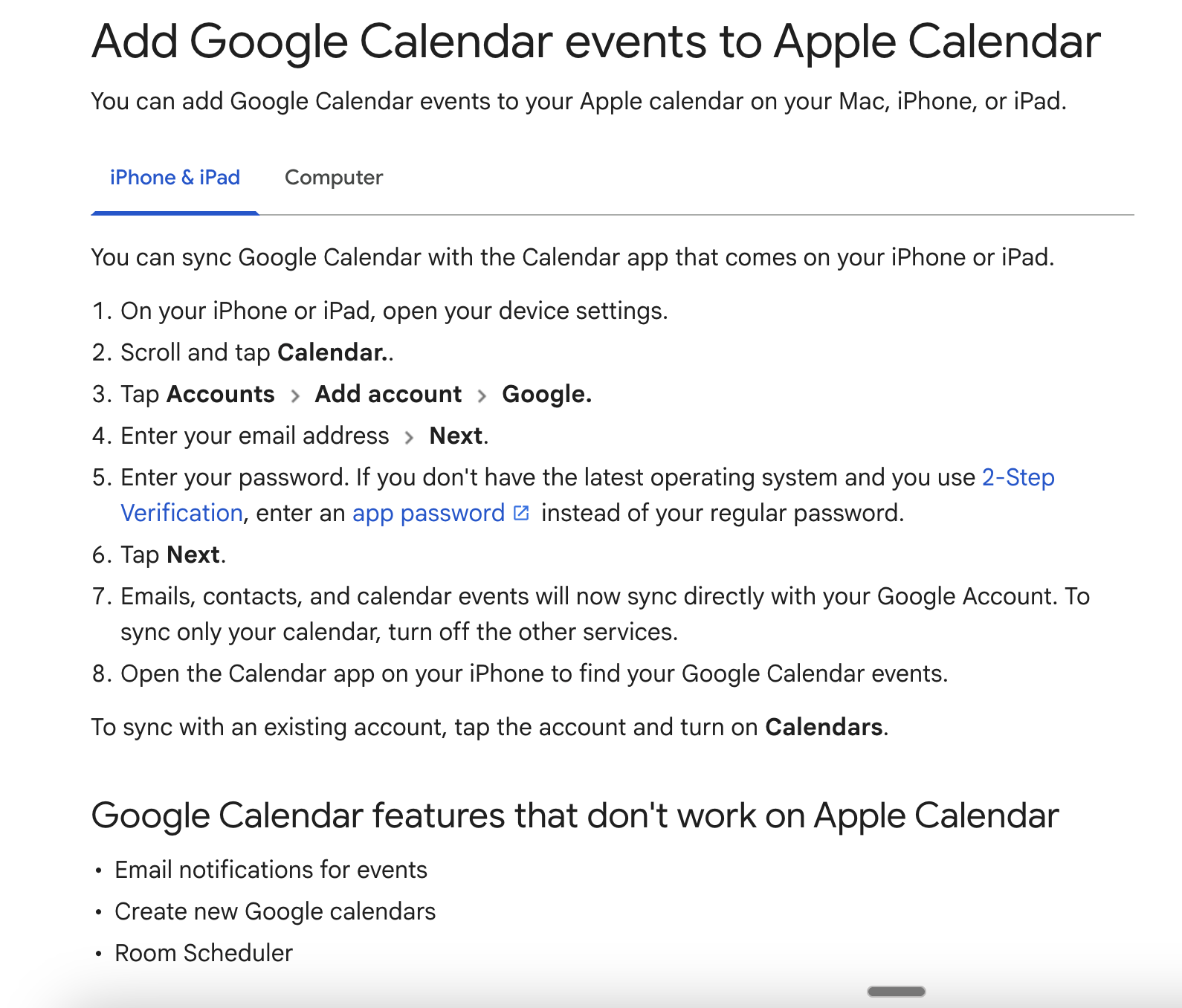
Adding Google Calendar Events to Apple calendar App